Setup Guide
Thanks for using Beacon!
To get the your bot up and running, follow these steps:
-
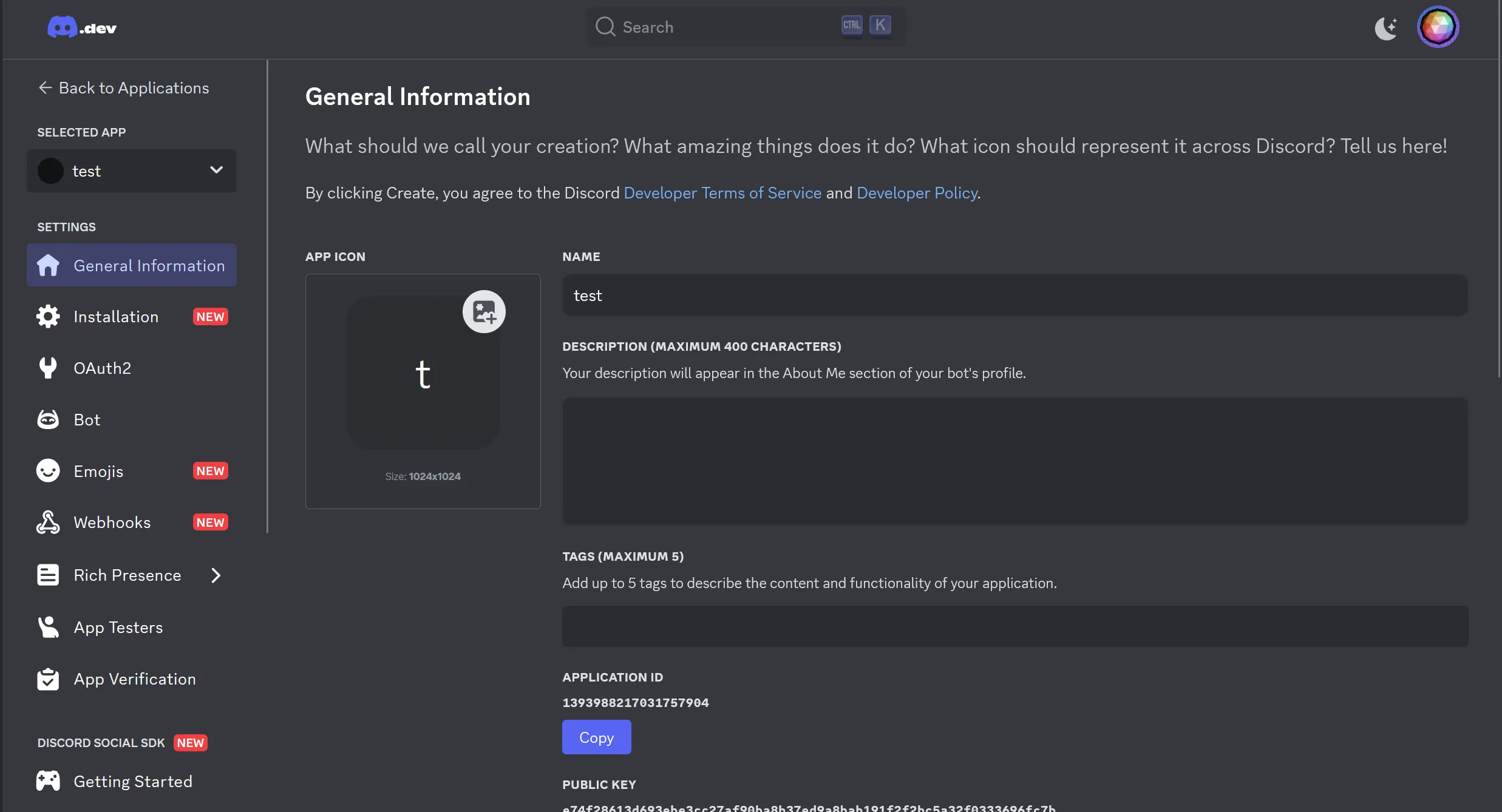
Open the Discord Developer Portal and register a new application.

Excellent! Your view should now look something like this:
-
To start off, we’ll be making sure that this bot can only be used in servers and cannot be installed as a user application. Navigate to the Installation and mark the checkboxes as so:
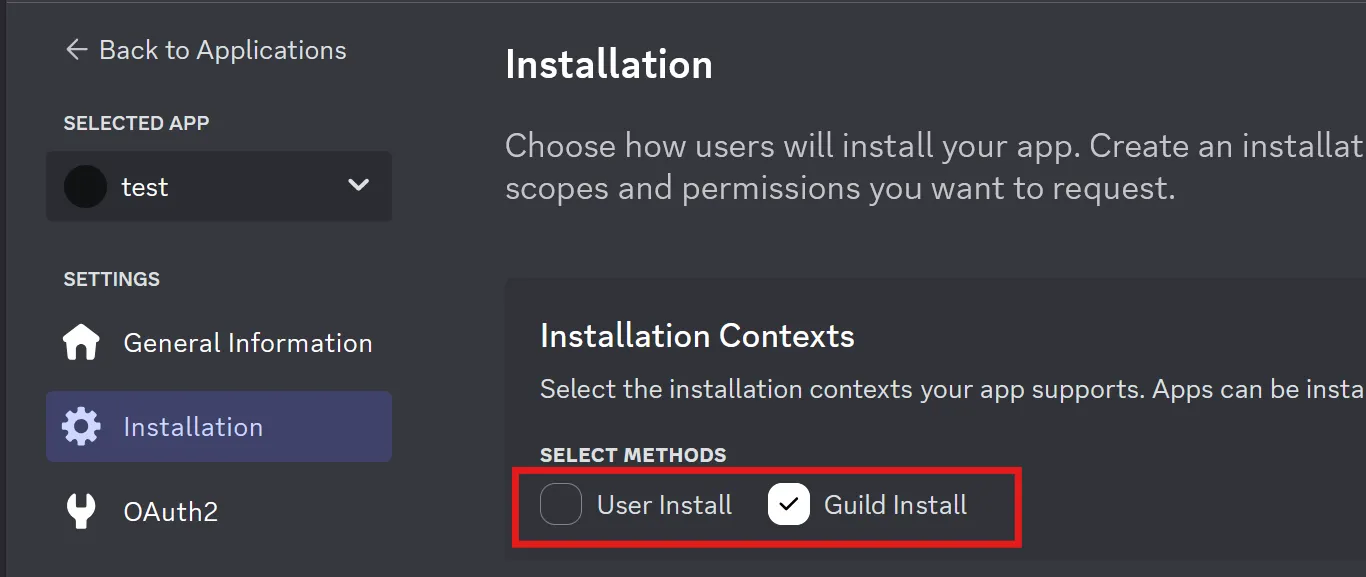
While we’re in the Installation tab, let’s also set up the correct permissions. Scroll down to the Default Install Settings section.
In the
scopesfield, selectbot. A new field should appear below it, calledpermissions. Select theAdministratorpermission. This will allow the bot to function properly in your server without having to set up permissions for each individual channel.
-
Let’s configure some required settings! The bot account requires access to some special permissions to function properly. For example, it needs access to message contents to be able to transcript tickets etc. Navigate to the Bot tab and then scroll down until you find the Privileged Gateway Intents section.
Enable all of them. The bot will not be able to start without them!

-
The bot is now ready to be added to your server!
Navigate back to the Installation tab and scroll to the Install Link section.
Copy the link, and use it like you would any other Discord invite link.
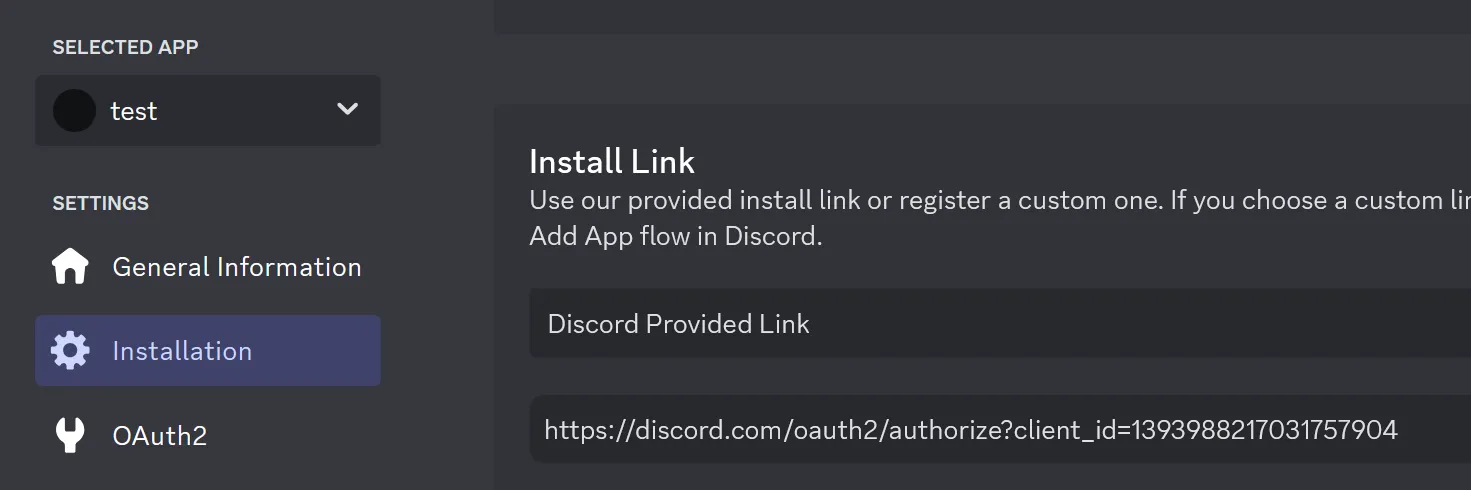
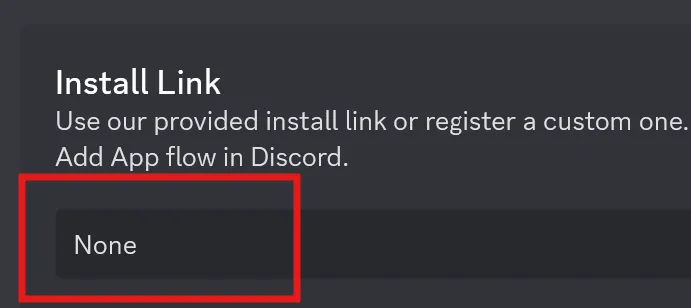
Now, since nobody will be adding the bot to their own servers, let’s remove the invite link!
-
Finally, let’s guide you through making the bot secure and get the correct information to the admins.
For the team to be able to activate your bot, we’ll need the token of the bot. Navigate back to the Bot tab and generate a new token. Copy it and store it!
Remember to also turn ‘Public Bot’ off!

-
The essential setup is now complete! Now, you can send over the essential information to the Beacon team.
- The bot token you copied in the previous step.
- The server ID of the server you want the bot to be installed in. You can find this by right-clicking the server icon in Discord and selecting “Copy Server ID”. Option not available? Enable Developer Mode in Discord settings..
-
Bonus step! Want to customize the bot?
You can change the bot’s PFP and banner (can even be animated!) in the Bot tab of the application settings.
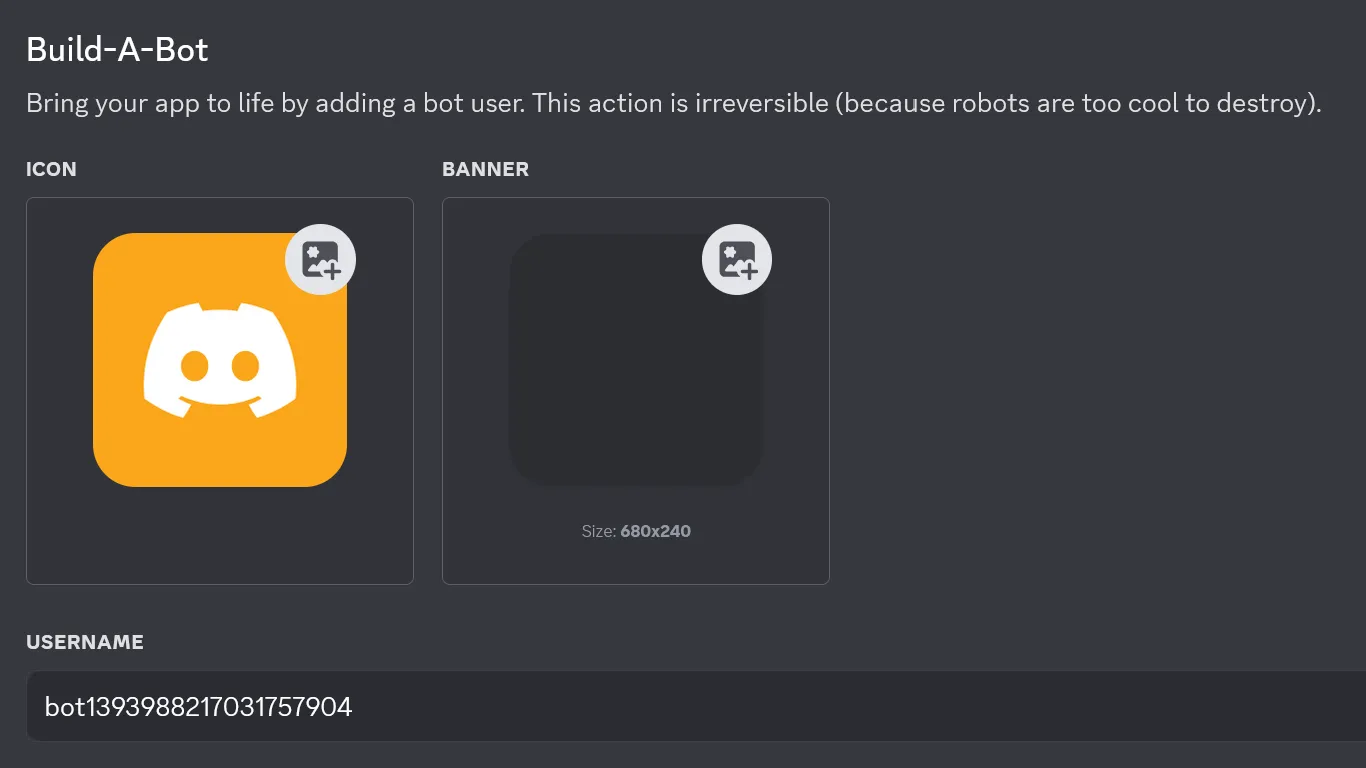
The bot’s About Me section can be edited in the General Information tab. This is what users will see when they click on the bot’s profile.